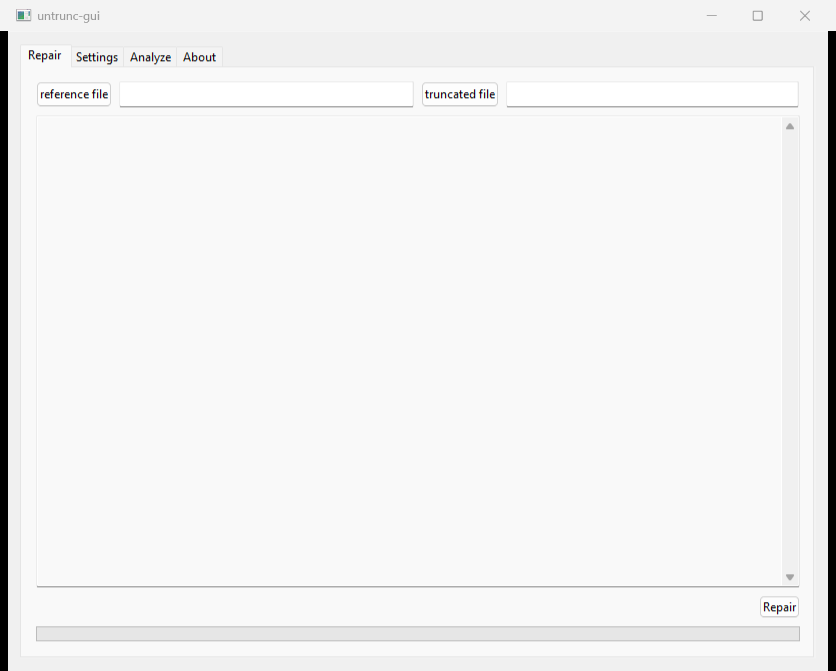
In short
- What happened: the program builds the broken file a new map from the sample clip. If the sample differs from the file in one small detail (frame rate, compression type, audio setting), the map comes out skewed, and the result jumps or is missing pieces.
- What not to do right now: don't install yet another program, don't try to “convert” the result, and don't delete the original file or your attempts.
- What to do: go through the five checks below, in order. Most of the time the fix is a different sample clip.
- Don't want to deal with it? Send me the file. The check is free, and if I couldn't recover it, you get your money back. How to send it.
What did you get? That tells you what to check
- The video jumps, shows blocks, or the sound drifts toward the end: the sample clip doesn't match closely enough. Checks 2 and 3.
- No sound at all: the audio setting on the sample clip is different (an external mic versus the built-in one, say). Check 3.
- The output is far shorter than what you shot: either the footage really isn't there (check 1), or the program stopped partway (check 4).
- The program crashed, or nothing came out: checks 1 and 5.
- The file opens and looks great: check all of it before trusting it, the end included. The problems hide in the middle.
Five checks, in order
- Is the file complete? Compare its size with the original on the card. A file that came by transfer (WeTransfer, Drive, a download) and stopped halfway looks fine and is empty inside, and no program builds that. How you know: exactly the same size as on the card. If you have no access to the card, send it over, and the check whether the footage is inside is free.
- Does the sample clip match exactly? Same camera, same resolution, same frames per second, same compression type (H.264 or HEVC), same recording quality. Safest: the clip shot right before or after the broken one, with no setting changed. On DJI and GoPro, make sure the camera didn't switch between H.264 and HEVC during the day.
- Does the sound match too? Same audio setting: built-in or external mic, same number of channels, same quality. A clip shot with a different mic can give a perfect video with no sound.
- Was it run on a copy, on the computer's own drive? Work on a copy on the computer, not straight off the card and not from a slow external drive. A big file takes time: for an hour of footage the program can work for long minutes without showing progress. Wait.
- Sony: is the RSV option ticked? The program has a dedicated option for Sony .RSV files (in the windowed version: the Settings tab), and without it the file isn't recognised at all. And if nothing comes out for any file, download the current version again.
When none of that helped
Try another sample clip, and another. It sounds odd, but it's the fix in most cases: one clip isn't similar enough, another is. If after three different clips the result still jumps, or the file won't open at all, that's the time to send it: the check is free, and the answer says whether the footage exists and whether it's worth going on.
Short answers
- Would a paid program do it better? No. They all work the same way: build a new map from a sample clip. If untrunc failed because of a mismatched clip, they fail for the same reason.
- The video opens, but the sound only drifts at the end. Good enough? For editing, no. Sound drifting at the end most likely means the map is slightly off along the whole file. A closer sample clip fixes that, not re-exporting.
- How do you know the footage is even in the file? A cut-off video file looks its normal size from the outside, but inside it can be empty: the part the camera or the transfer never got to write is like blank pages at the end of a notebook. In the free check I open the file and see how much of it really holds picture and sound and how much is blank, and that takes a minute. If most of the file is blank, there is nothing to recover, and no program will help.
If you're stuck
If the file is big, if the second run also came out jittery, or you just don't have the head for this right now, send me a link to the file and to a healthy clip from the same camera. I first check whether the footage is actually in the file and tell you where you stand. That check is free. If there's something to recover and you want to go ahead, you get a price for the file. You pay, and then the work starts. And if I couldn't recover it, you get your money back, all of it or part of it, depending on the result.
Prefer email? avihaiteram@gmail.com
Who I am
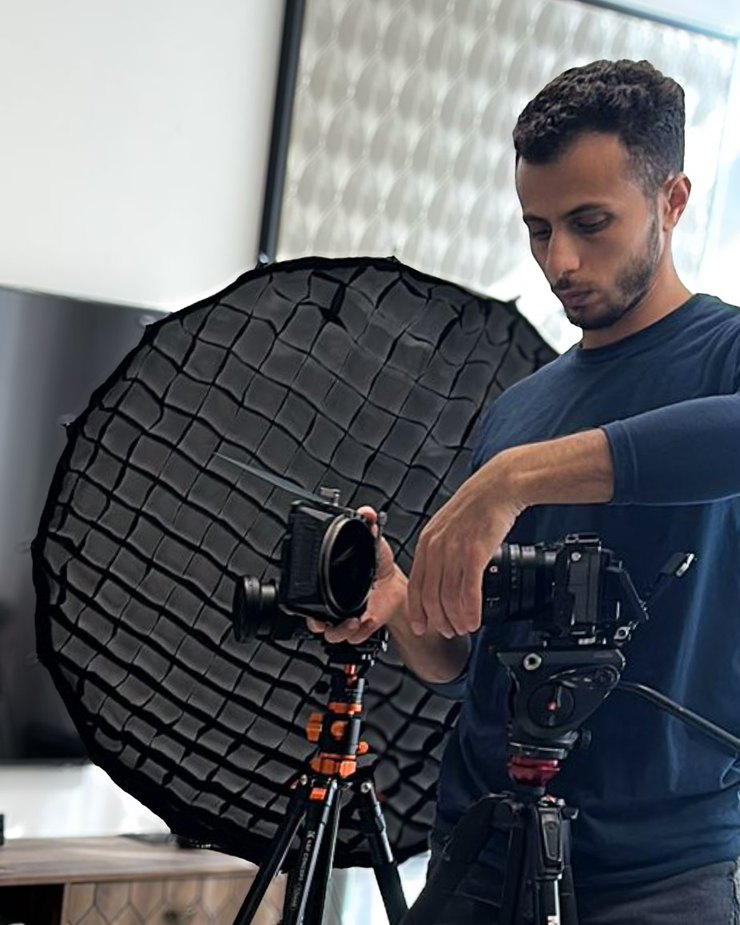
Avihai Teram, videographer and video editor. I shoot on a Sony FX3 and work with camera files like these every day, so I know how a camera writes them and what breaks when it shuts off mid-recording, and I have brought files like these back from Sony and DJI cameras. Send me a file that won't open: the first check is always free, and if I couldn't recover it, you get your money back. You can also find me on Instagram: @avihai.teram.