In short
- What happened: the footage was saved, but the map that tells a player where each frame sits (every single picture in the video) was never written, because the camera shut off before it could.
- What not to do right now: don't format the card (that erases everything), don't keep shooting on it, and don't convert the file.
- What to do: first give the camera itself a chance to repair. If that didn't help, build a new map with a healthy clip from the same camera and a free program. Steps below.
- Don't want to deal with it? Send me the file. The check is free, and if I couldn't recover it, you get your money back. How to send it.
First: let the camera try
Both DJI and GoPro can repair a cut-off file on their own, and sometimes that's all it takes.
- GoPro: put the card back in the same camera and switch it on. If the camera found a damaged file, a repair icon appears on the screen (on older models: SOS). Press any button, and the camera repairs it. Sometimes the last few seconds of the video are lost, and that's fine.
- DJI: put the card back in the camera or drone, switch it on, and wait about half a minute. According to DJI's manual, the camera tries to restore the file itself.
How you know it worked: the file opens in a player and plays to the end. If not, carry on.
Before the steps: did the file arrive complete?
If the file reached you by download, WeTransfer, Drive sync or through the DJI app, and not straight off the card, compare its size with the original. A smaller file, or one that stops at exactly a round number of megabytes, arrived incomplete, and no program builds that. Ask for the file from the card itself.
What to do, step by step
- Copy everything to the computer. The broken file, and while you're at it a healthy clip from the same card. From now on work only on the copies. The card stays aside.
- Prepare a “sample clip”. A healthy recording from the same camera at exactly the settings the broken file was shot with: same resolution (4K, say), same frames per second (25, 50 or 100), same recording quality, and the same compression type (H.264 or HEVC; both exist in the DJI and GoPro menus). Simplest: a clip you shot the same day, just before or after the broken one, without changing settings in between. The clip you copied from the card usually fits. If there isn't one, put a card in the camera, lens cap on, and record 30 seconds.
- Run a free program called untrunc. It takes the map from the healthy clip and builds a new one for the broken file. Download it here (Windows. A normal program with buttons, nothing to type). On the page that opens, download untrunc_x64.zip, unzip it, and run untrunc-gui.exe (not untrunc.exe, which is the version without the window). It handles DJI and GoPro. Pick the sample clip, pick the broken file, and run. If the file that comes out won't open, run it once more, that happens. How you know it worked: a new MP4 appears, and it opens in a player.
- Check the whole file, not just the start. The length should match what you shot. Scrub to five or six points along the video, especially near the end. At each one stop, play a few seconds, and check the picture moves smoothly and the lips match the speech. If the picture jumps or the sound drifts: the sample clip doesn't match closely enough. Find a closer match and run again. Don't switch programs.
Why it happens to these cameras in particular
Action cameras and drones tend to shut off mid-recording more than regular cameras: a small battery that runs out, overheating that shuts the camera down to protect itself, a slow memory card that can't keep up with 4K, or a drone landing on an empty battery. In all of these the file's map never gets written, and the file is left full size and mapless. That is exactly the situation that can be repaired.
Two real cases, in both directions: the tool was tested on a healthy Osmo Action clip whose map was removed and rebuilt from another clip from the same camera, and the result came out identical to the original. And a DJI file that arrived by download was 88 percent empty, and no program could save that one. The difference between the two is the size check above.
Short answers
- The camera didn't offer to repair, and no icon appeared? That happens, mostly when the card was taken out before the camera was switched on again. Go straight to the steps above: the result is the same.
- Do I need technical knowledge for this? No. The program works like any other: open it, pick two files, press a button. Nothing to type.
- The drone file came through the app, not from the card? Usually it's a reduced copy, and sometimes a partial one. The full file is on the card in the drone, and that's the one to work with.
If you're stuck
If the file is big, if the second run also came out jittery, or you just don't have the head for this right now, send me a link to the file and to a healthy clip from the same camera. I first check whether the footage is actually in the file and tell you where you stand. That check is free. If there's something to recover and you want to go ahead, you get a price for the file. You pay, and then the work starts. And if I couldn't recover it, you get your money back, all of it or part of it, depending on the result.
Prefer email? avihaiteram@gmail.com
Who I am
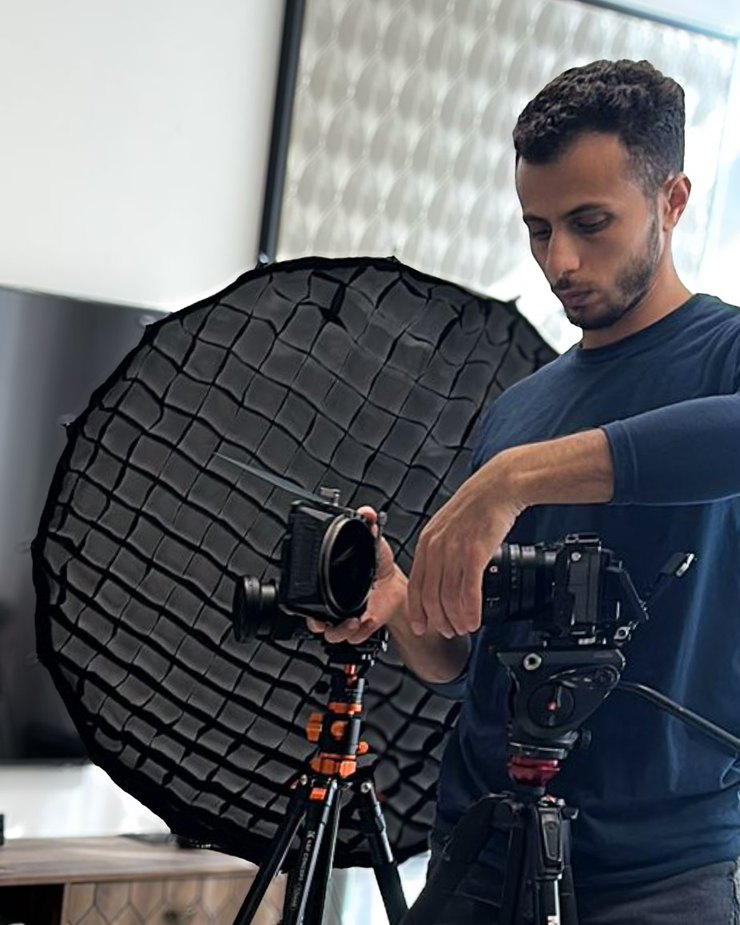
Avihai Teram, videographer and video editor. I shoot on a Sony FX3 and work with camera files like these every day, so I know how a camera writes them and what breaks when it shuts off mid-recording, and I have brought files like these back from Sony and DJI cameras. Send me a file that won't open: the first check is always free, and if I couldn't recover it, you get your money back. You can also find me on Instagram: @avihai.teram.