What actually happened
The camera writes picture and sound to the card the whole time. But there's one more small part of the file — think of it as a map that tells a player where every frame sits (every single picture in the video) — and the camera writes that map only at the end, when you press stop. If the power went before that, you're left with all the footage and no map, and no player knows where to start. That's why renaming the file to .mp4 doesn't help: it still has no map.
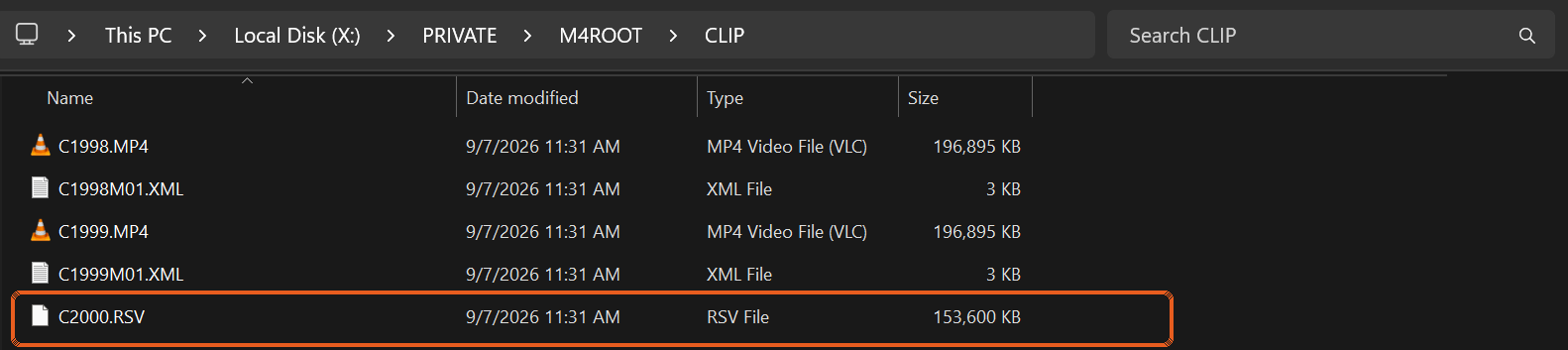
Before you do anything
- Don't format the card (that erases everything on it).
- Don't keep shooting on it. Whatever gets overwritten is gone.
- Don't run a repair tool on the original file. Copy it first, work on the copy.
- If the file reached you by transfer (WeTransfer, Drive) — check it arrived complete.
A transfer that stalled halfway leaves a file that looks fine and is half empty inside, and no software repairs that.
Which case is yours
| What happened | What to do |
|---|---|
| The recording was cut off. The file exists, but won't open. | Build it a new map using a healthy clip from the same camera. You can do it yourself — explained below. |
| You deleted files or formatted the card. There's no file at all. | That's a different job: recovering from the card itself. What to do — and don't touch the card in the meantime. |
| The card isn't detected at all, got wet, or is physically broken. | Software won't help here, but there are a few things to try before a lab. What to do. |
How to repair it yourself
- A sample clip: a healthy recording from the same camera, at exactly the same settings: same resolution (the picture size, 4K say), same frames per second (25, 50 or 100), same recording quality. Length doesn't matter — put a card in, lens cap on, record 30 seconds.
- A free tool called untrunc. Download it here (Windows, with a simple interface). On the page that opens, download untrunc_x64.zip, unzip it, and run untrunc-gui.exe (not untrunc.exe, which is the version without the window). Pick the sample clip, pick the broken file, run it. It's exactly what the paid tools do. Sometimes it takes a second run.
- Then check. This is the part most people skip, and it's why they only find the problem once they sit down to edit.
If you deleted files or formatted the card
Deleting and formatting don't erase the footage itself; they erase the record of where it is. The footage stays on the card until something new is written over it. So the one rule that decides everything: from the moment it happens, don't shoot on that card and don't save anything to it.
- Take the card out of the camera and connect it to a computer with a card reader.
- Run a tool that scans the card for deleted files. PhotoRec is free and works on Windows and Mac. SanDisk's RescuePRO does the same with a friendlier interface.
- Save what it finds to a different drive, never back onto the card.
- Check the videos that came back. A long clip recovered from a deleted card sometimes comes back without its map — exactly the first case. If a file looks the right size and won't open, carry on with it using the guide above.
Whatever was shot after the deletion was written over the old footage, and that part is gone for good. That's the whole difference between "everything came back" and "half came back".
If the card isn't detected at all
- If the computer offers to format it — no. "The disk is not formatted, format now?" is the message that kills the chance. Close it.
- Try another card reader and another cable. A large share of "dead card" is a dead reader.
- Try the camera itself. Put the card in the camera and connect the camera to the computer by cable. Sometimes the camera reads a card an external reader can't.
- If still nothing — don't open it, don't bake it dry, don't try ten more times. Every attempt on a physically damaged card reduces what a lab can get off it.
- A recovery lab. Expect an inspection fee first and a quote per case. Worth asking two.
Back to the first case: why a "repaired" file comes out jittery
It isn't random. All of these tools build the new map from the sample clip. If the sample doesn't match exactly, the map comes out slightly off. When you scrub in a player it looks fine — and then when you export, or open it in your editing app, the picture jumps, green blocks appear, or the sound drifts toward the end.
So before you trust a repaired file: check its duration matches what you actually shot. Scrub to five or six points across the file, especially near the end, and at each one play a few seconds and check the picture moves smoothly and the lips match the speech. If anything's off — a better-matched sample clip and another pass. Not a different program.
Short guides by case
Each case has its own short page: what it means, and what to do.
If you're stuck
If the file is big, if the second run also came out jittery, or you just don't have the head for this right now, send me a link to the file and to a healthy clip from the same camera. I first check whether the footage is actually in the file and tell you where you stand. That check is free. If there's something to recover and you want to go ahead, you get a price for the file. You pay, and then the work starts. And if I couldn't recover it, you get your money back, all of it or part of it, depending on the result.
Prefer email? avihaiteram@gmail.com
Who I am
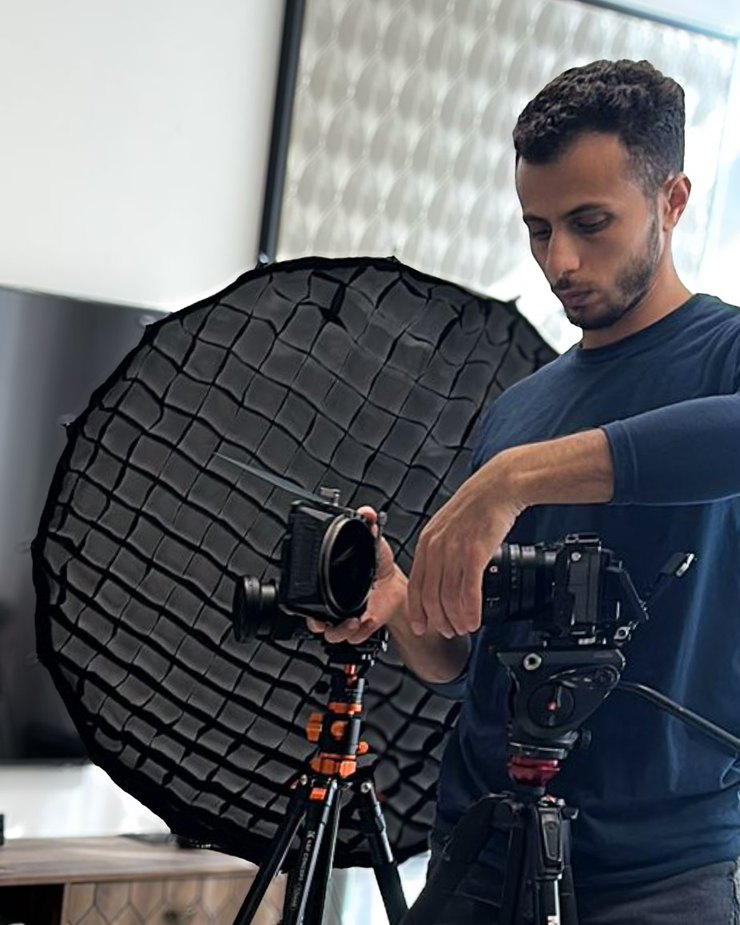
Avihai Teram, videographer and video editor. I shoot on a Sony FX3 and work with camera files like these every day, so I know how a camera writes them and what breaks when it shuts off mid-recording, and I have brought files like these back from Sony and DJI cameras. Send me a file that won't open: the first check is always free, and if I couldn't recover it, you get your money back. You can also find me on Instagram: @avihai.teram.